Wishlist
Save products you like and buy them later.
Features
- Heart icon on every product card throughout the app
- Wishlist tab in bottom navigation
- Move to Cart — add item to cart and remove from wishlist
- Remove — swipe or long-press to remove
- Empty state — illustration when wishlist is empty
- Badge count — shows number of saved items
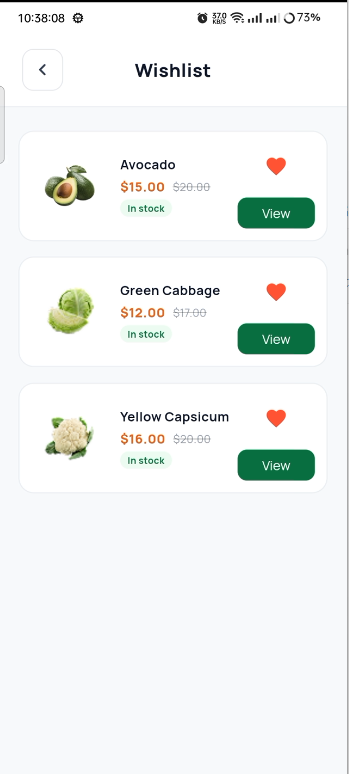
Wishlist
How to Add to Wishlist
Tap the heart icon on any product card:
- Home screen product strips
- Category product list
- Product details page
- AI recommendation cards
The heart fills with red when the item is saved.
Moving to Cart
On the Wishlist screen:
- Tap Move to Cart on any item
- Item is added to cart
- Item is removed from wishlist